Amazon listings, rewritten by AI. Still yours.
Import an Amazon listing, see which keywords drive your category, and let Vision write the title, bullet points, description, search terms and product images. Every result lands in a new version next to your live listing, ready to compare, refine and keep.
Listing Studio is part of Vision, AMALYZE's next platform. It runs alongside AMALYZE Shield.
01 · Import
Start from an Amazon listing
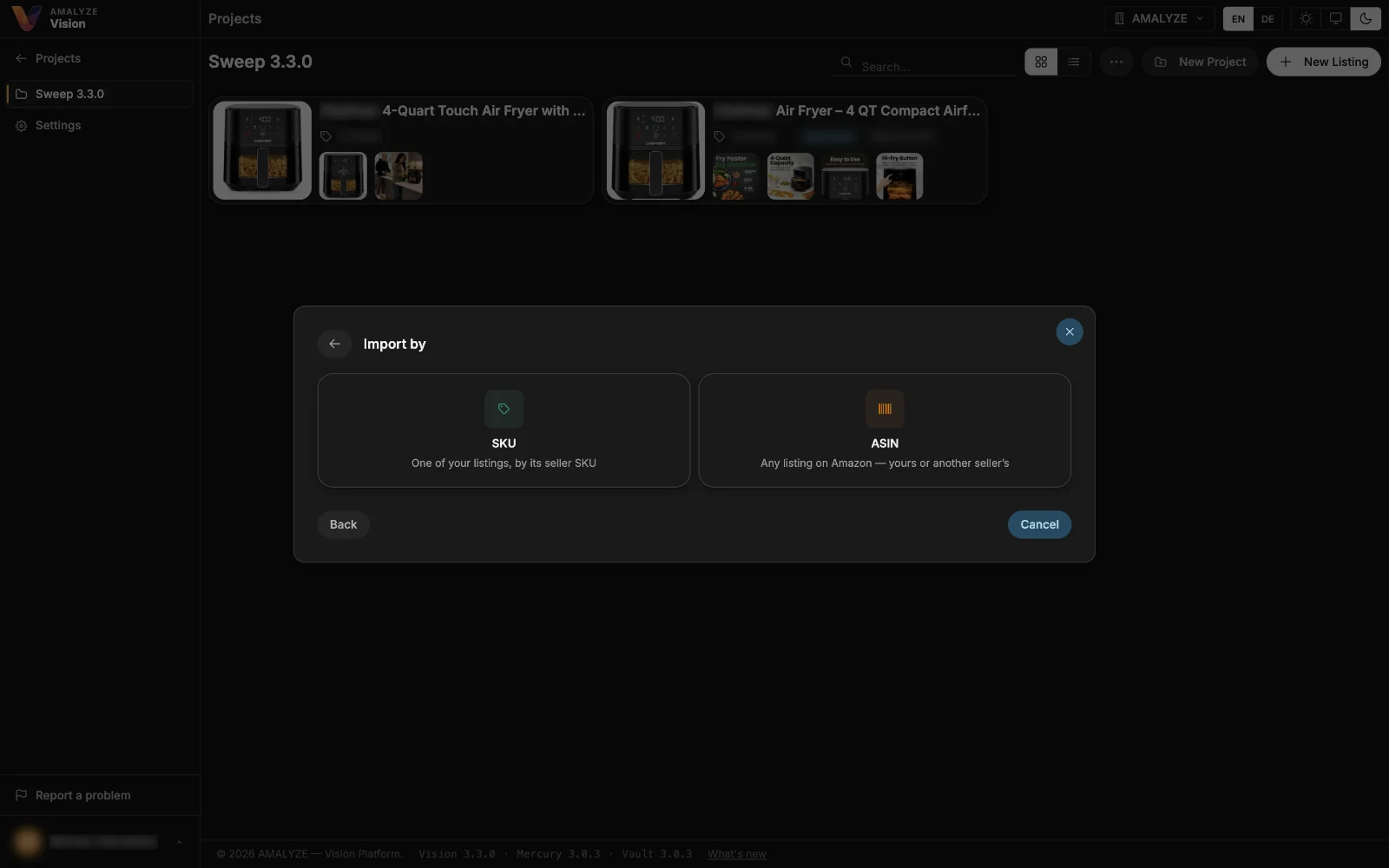
Pick a connected Seller Central account and marketplace, then import a listing by SKU or ASIN. Vision pulls in the listing, its catalog data and its images in their Amazon order.
02 · Keywords
The keywords that drive your category
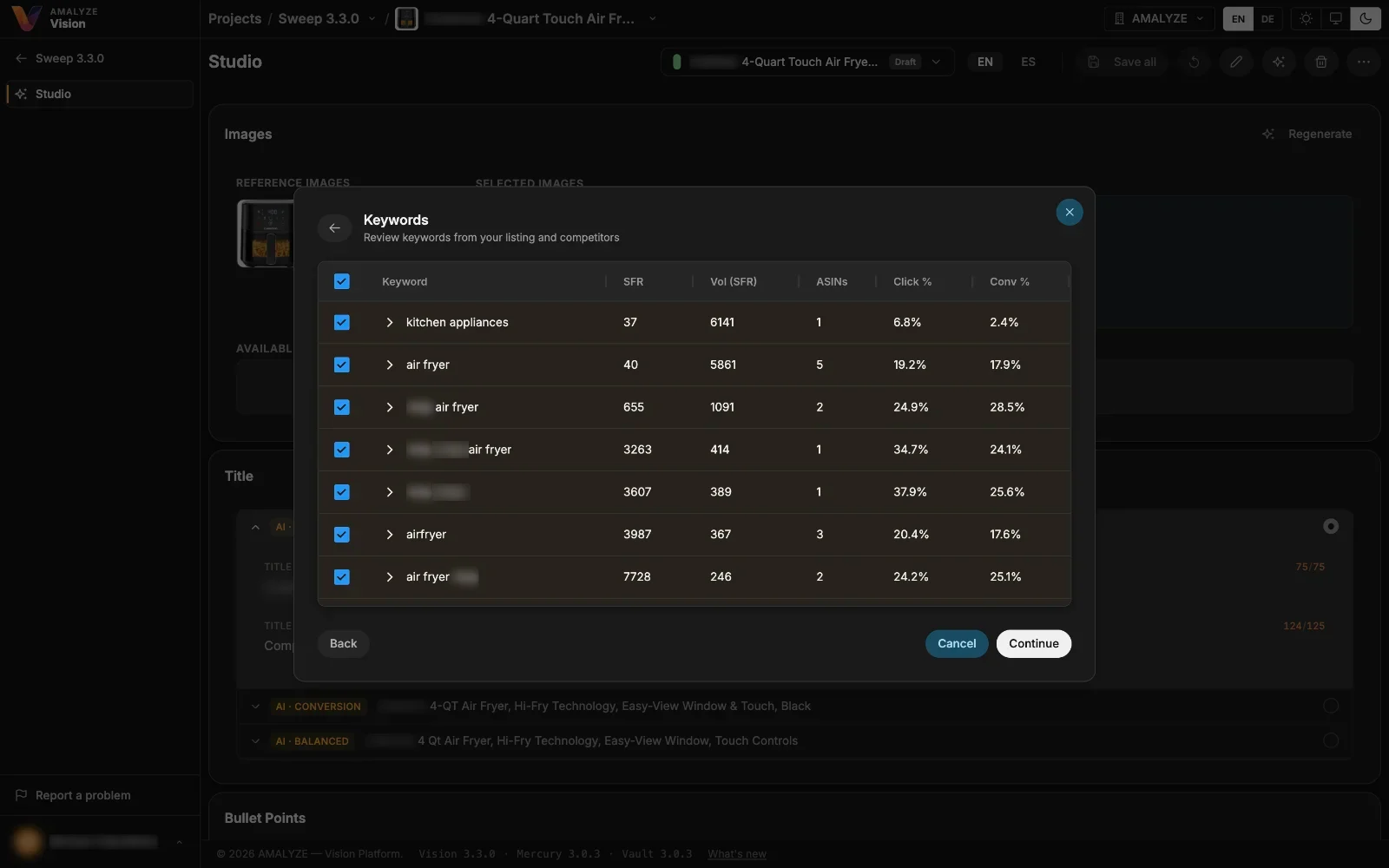
Vision brings together the search terms for your product and its category and shows search frequency rank, search volume, click share and conversion share for each. Expand a keyword to see how its clicks and conversions are distributed, then choose what goes into your listing.
03 · AI content
Watch the AI write your listing
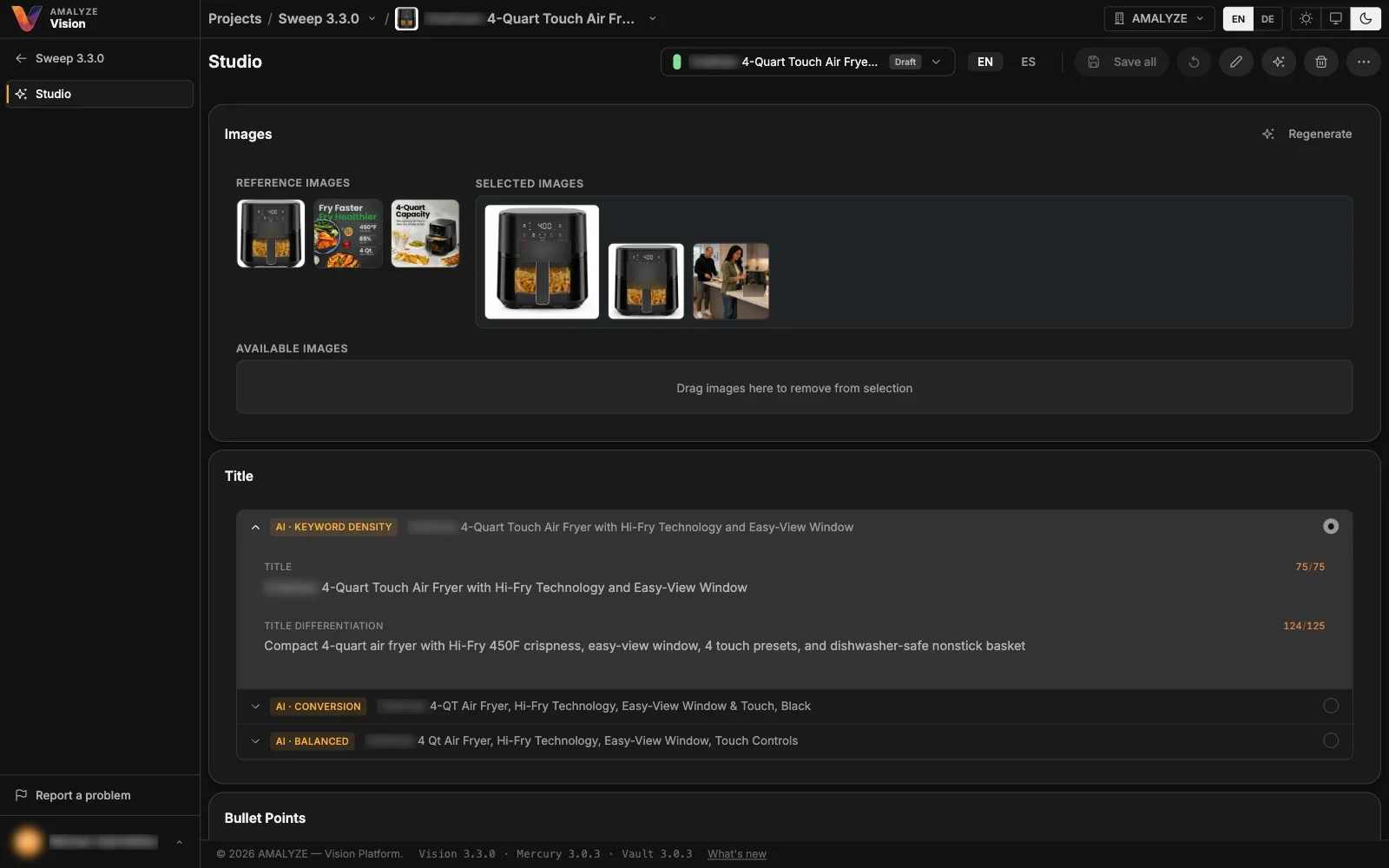
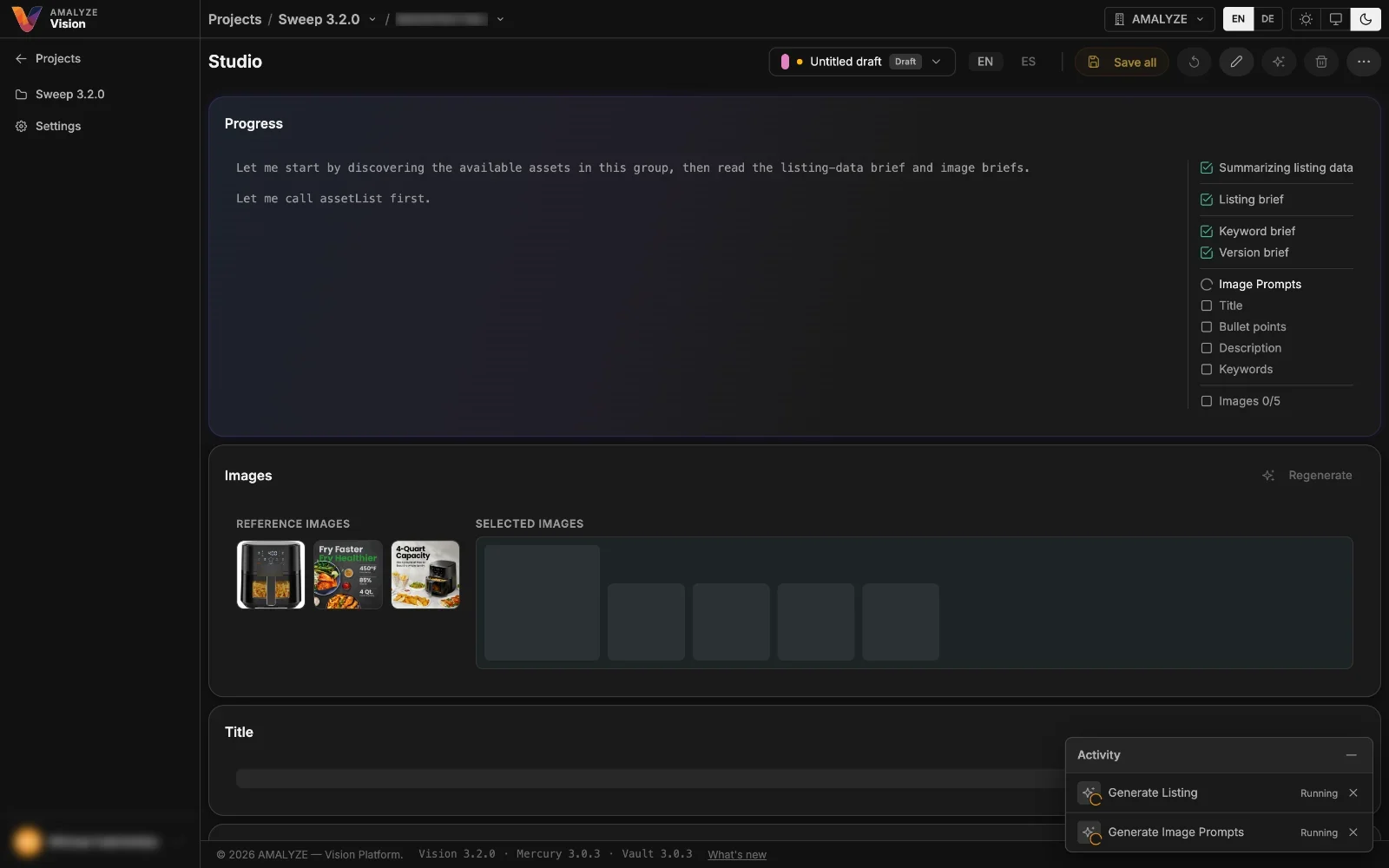
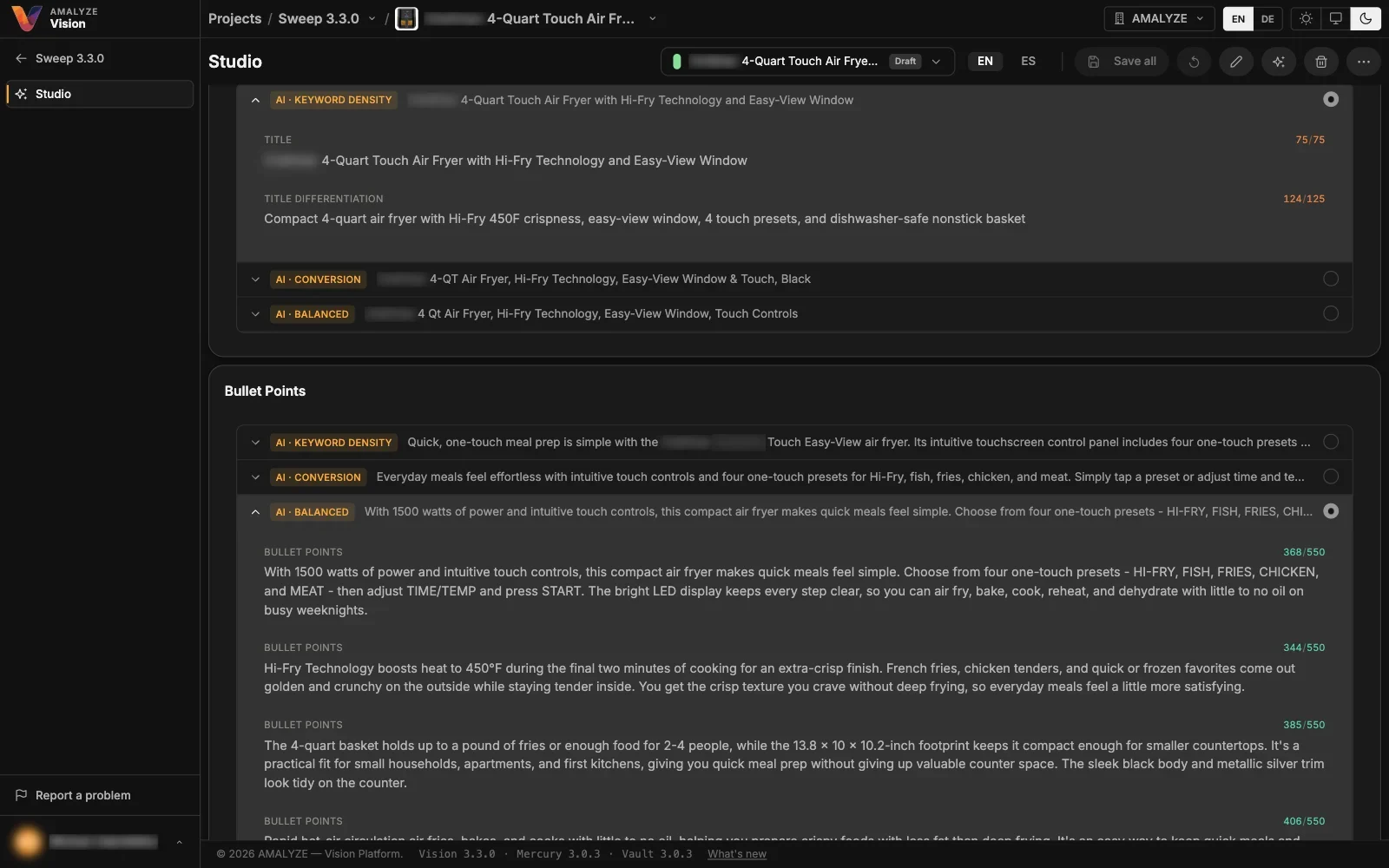
Vision first briefs your product, your keywords and the version you're building, then writes title, bullet points, description and search terms live on screen. Every field comes in three named variants within Amazon's limits – Keyword density, Conversion and Balanced – each in its own block. Pick one or edit it; a variant that fails can be retried on its own.
04 · AI images
Product images, generated from your product
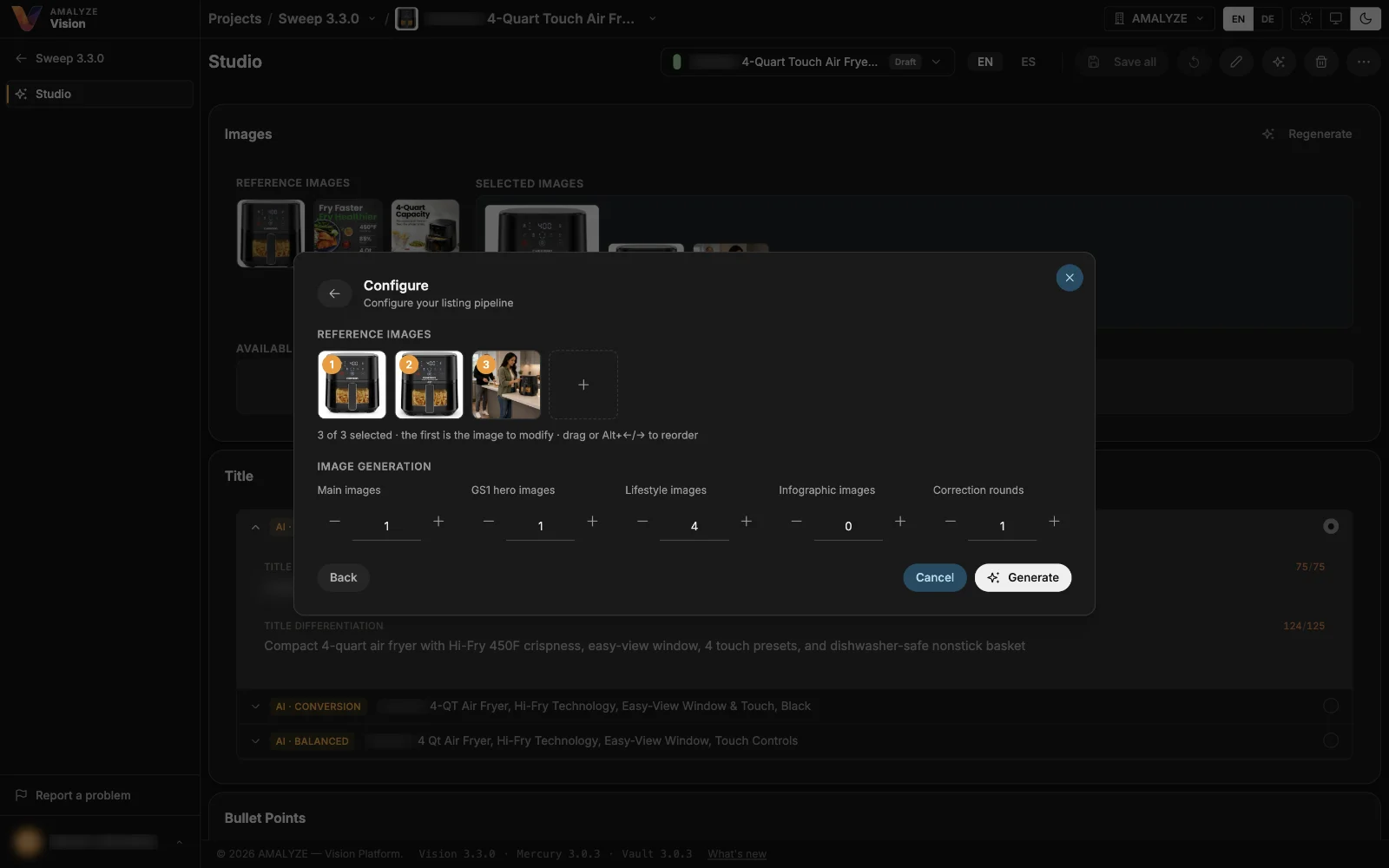
Choose how many main, lifestyle and infographic images you want, and pick up to three reference images – from your listing's images or your own uploads – in the order you set: the first is the one Vision modifies. Vision checks every image it makes and, where needed, corrects it – up to the number of correction rounds you choose (one by default, up to three) – and keeps the best. The same people appear across a run's images, and any text on an image is in the marketplace's language. Then arrange your gallery by drag and drop.
05 · Image editing
Refine any image in conversation
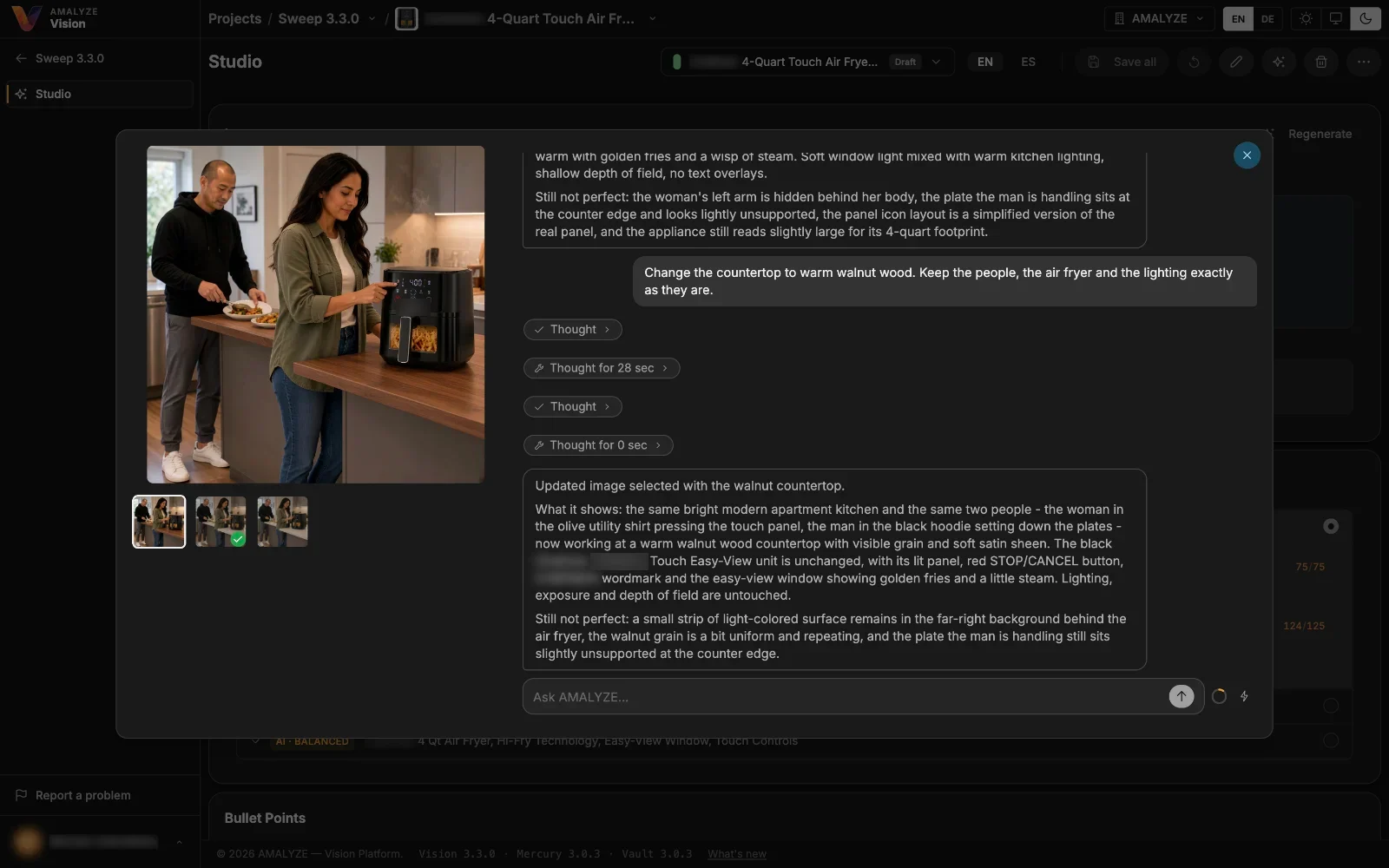
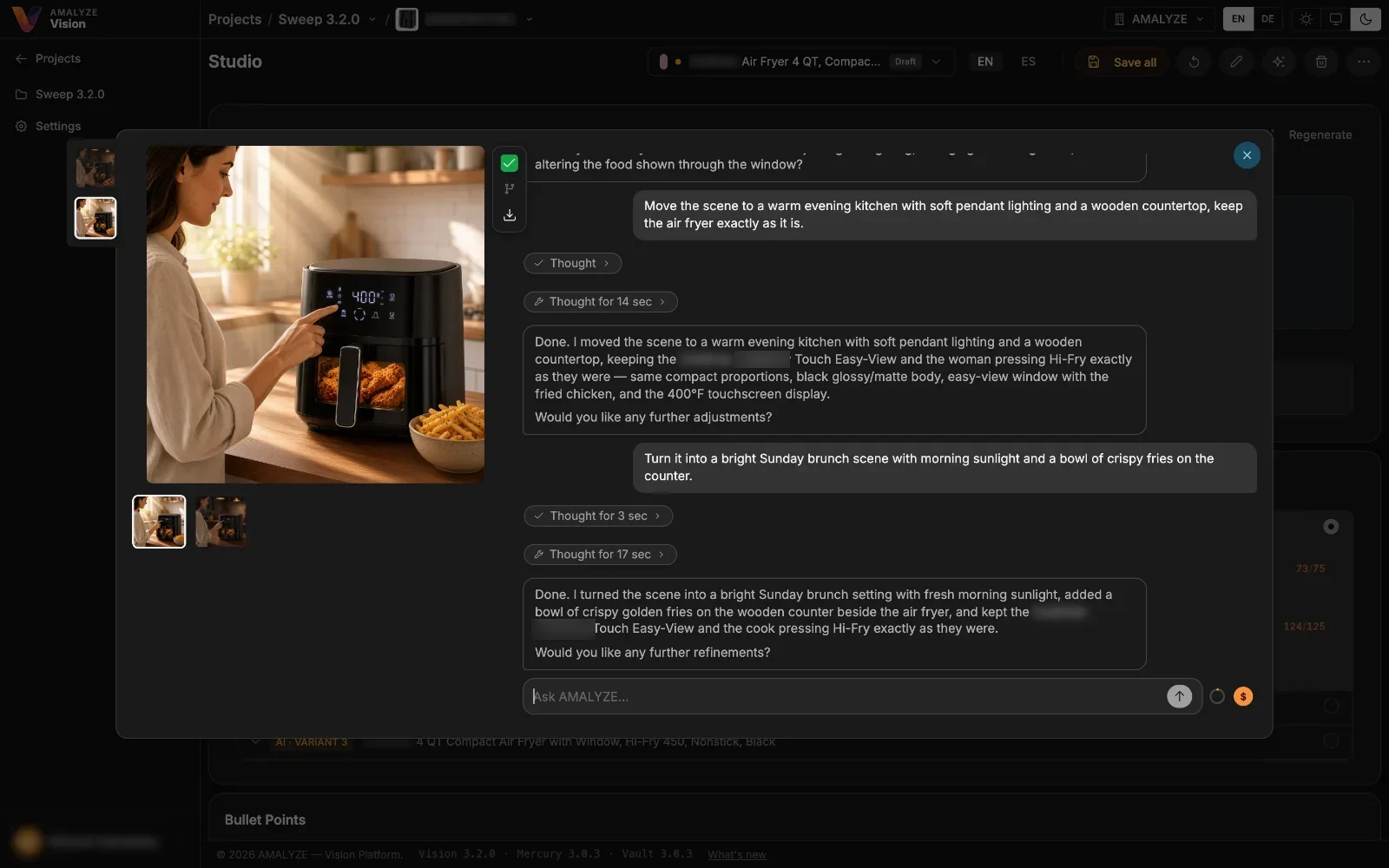
Open an image and describe the change: a different kitchen, warmer light, a plate of wings next to the product. Every result stays in the history. Branch from any earlier image to try another direction, then add the best one to your listing.
06 · Versions
Versions, not overwrites
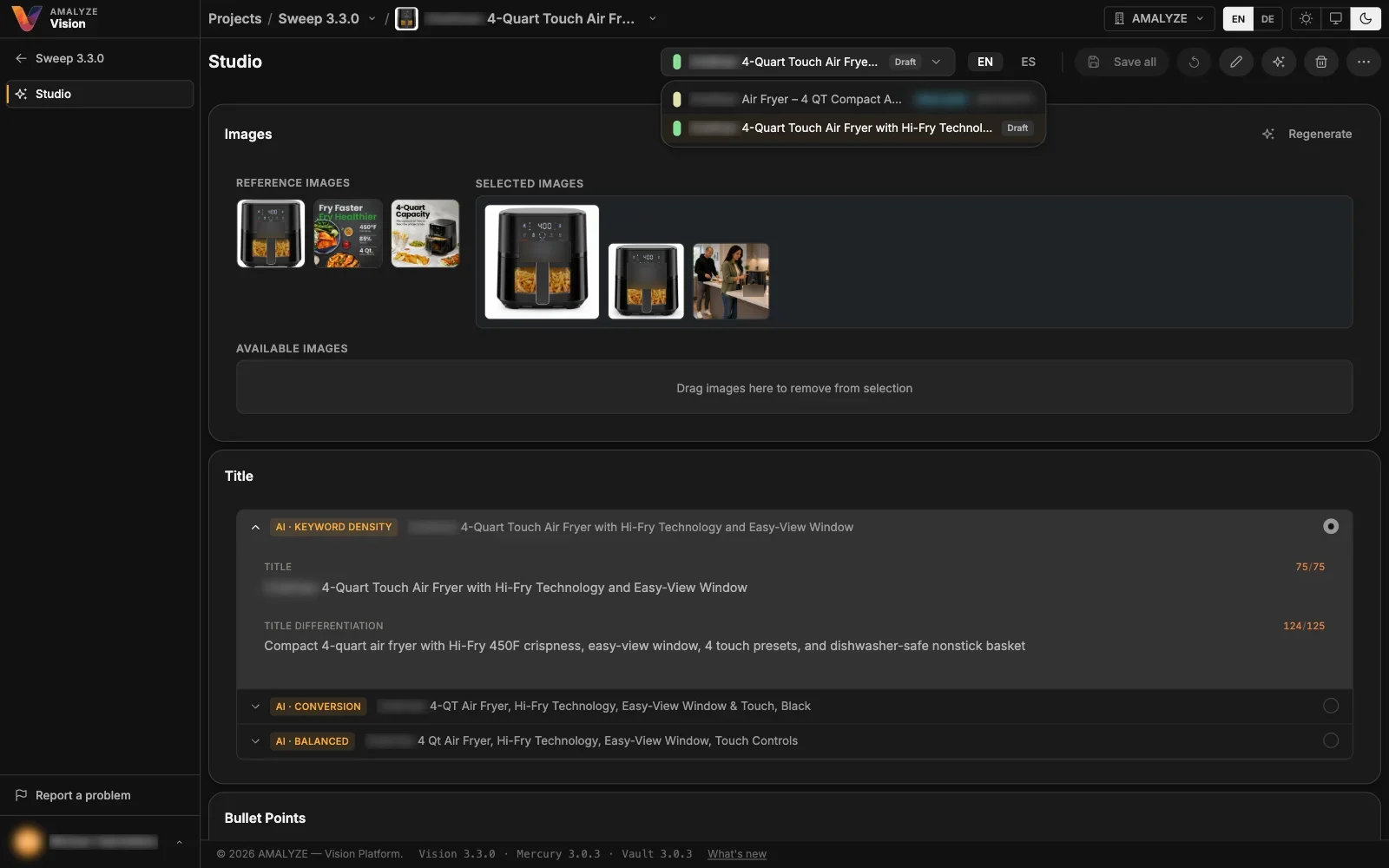
Every generation becomes a new, colour-coded version next to your live listing, with its own status. Switch between them, rename them, and pick up exactly where you left off: Vision reopens the version you last worked on.
07 · Projects
Organised for teams
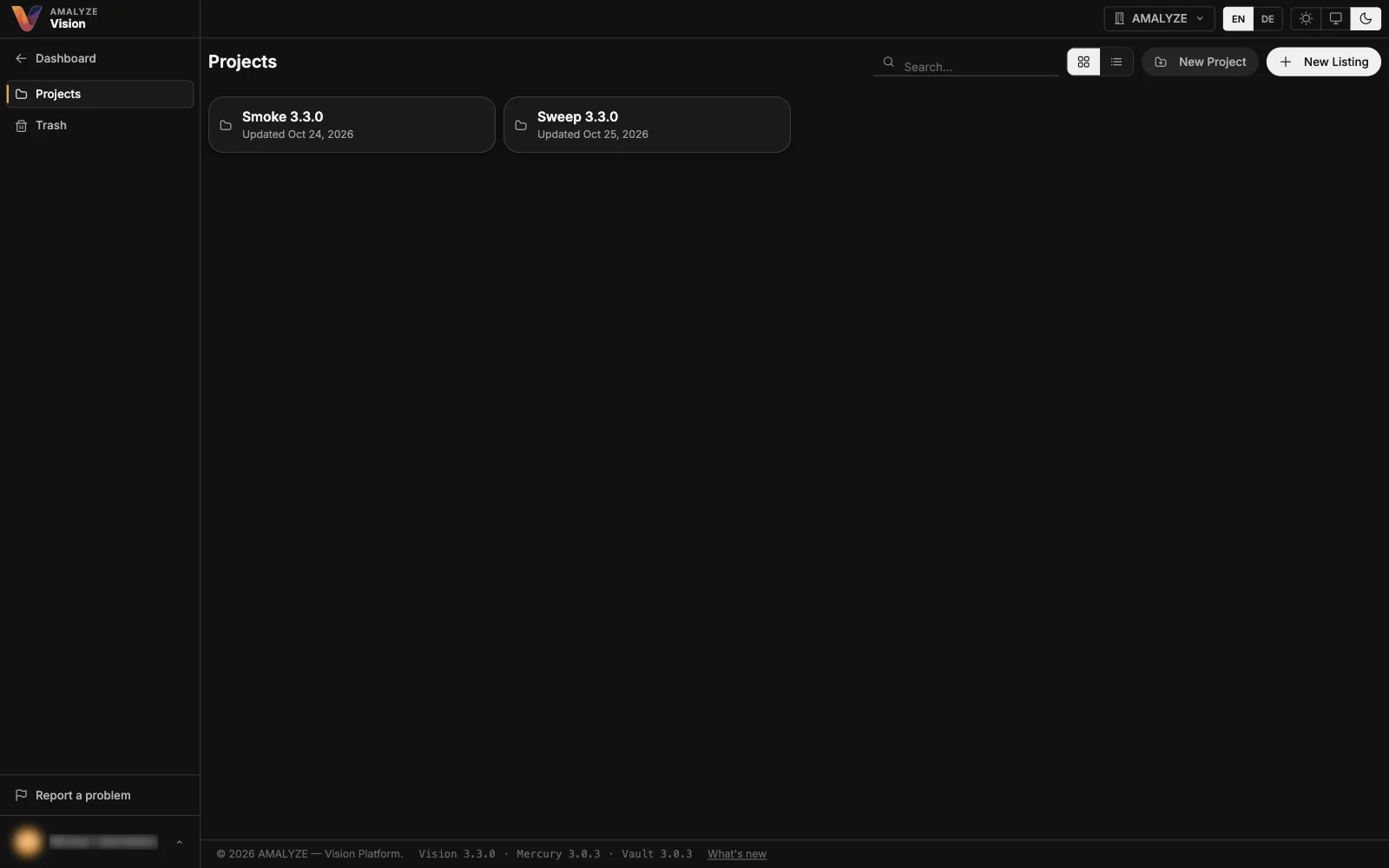
Group listings into projects and sub-projects, limit a project to the seller accounts it may use, and restore anything from the trash for a year.